Crossroads for admissions teams
Admissions application
management, made clear.
Bring inquiries, applications and admissions decisions into one working process for your university, community college or college system. Give your team the context to act and applicants a clear next step.
Product images use example institutions and data. Mockups are labeled “Illustrative preview.”
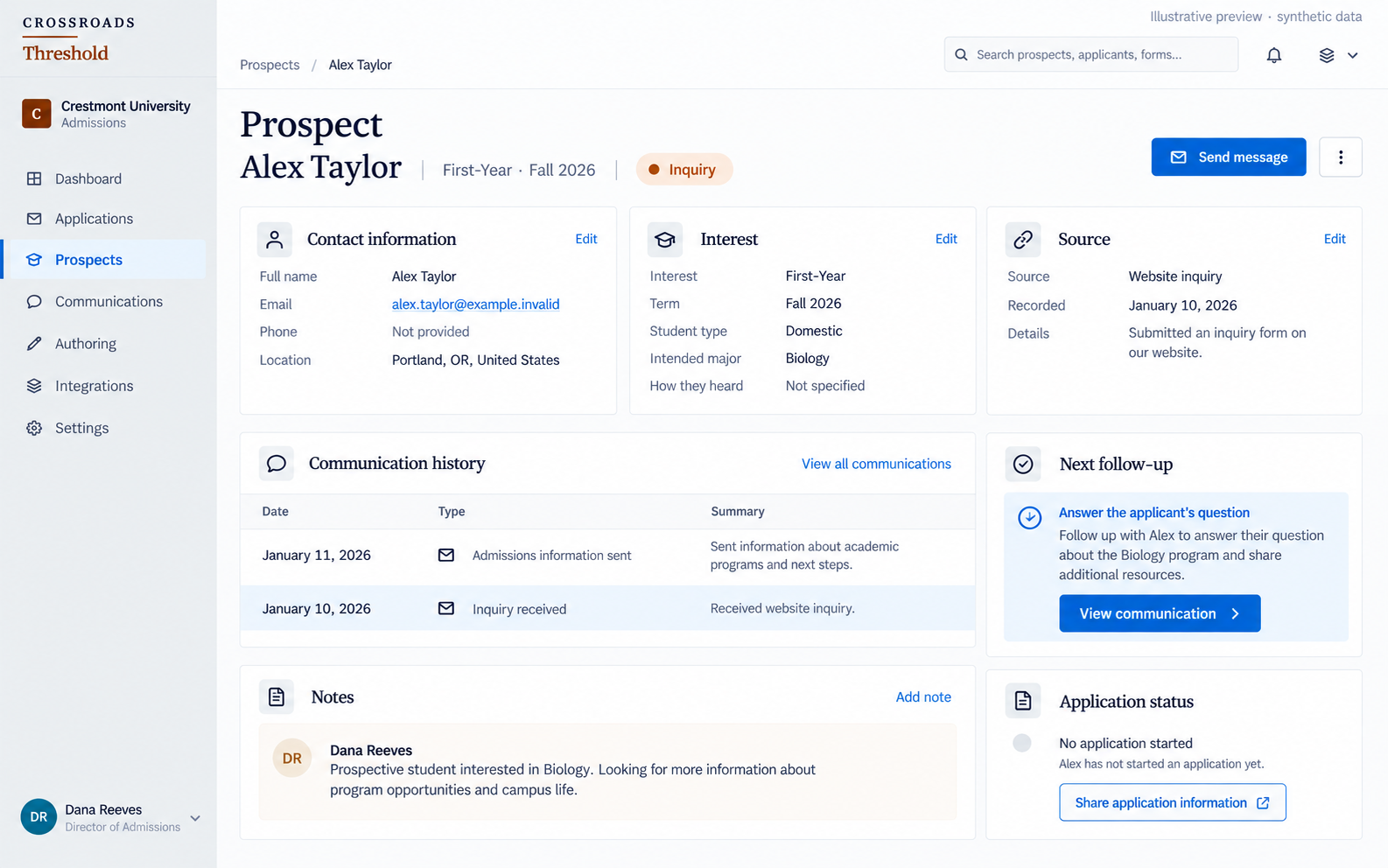
Start with the context behind the inquiry.
See where an inquiry came from and the communication that followed. Keep that context in view as your team helps the person take the next step toward applying.
Explore connected communications- Source
- Communication
- Next step
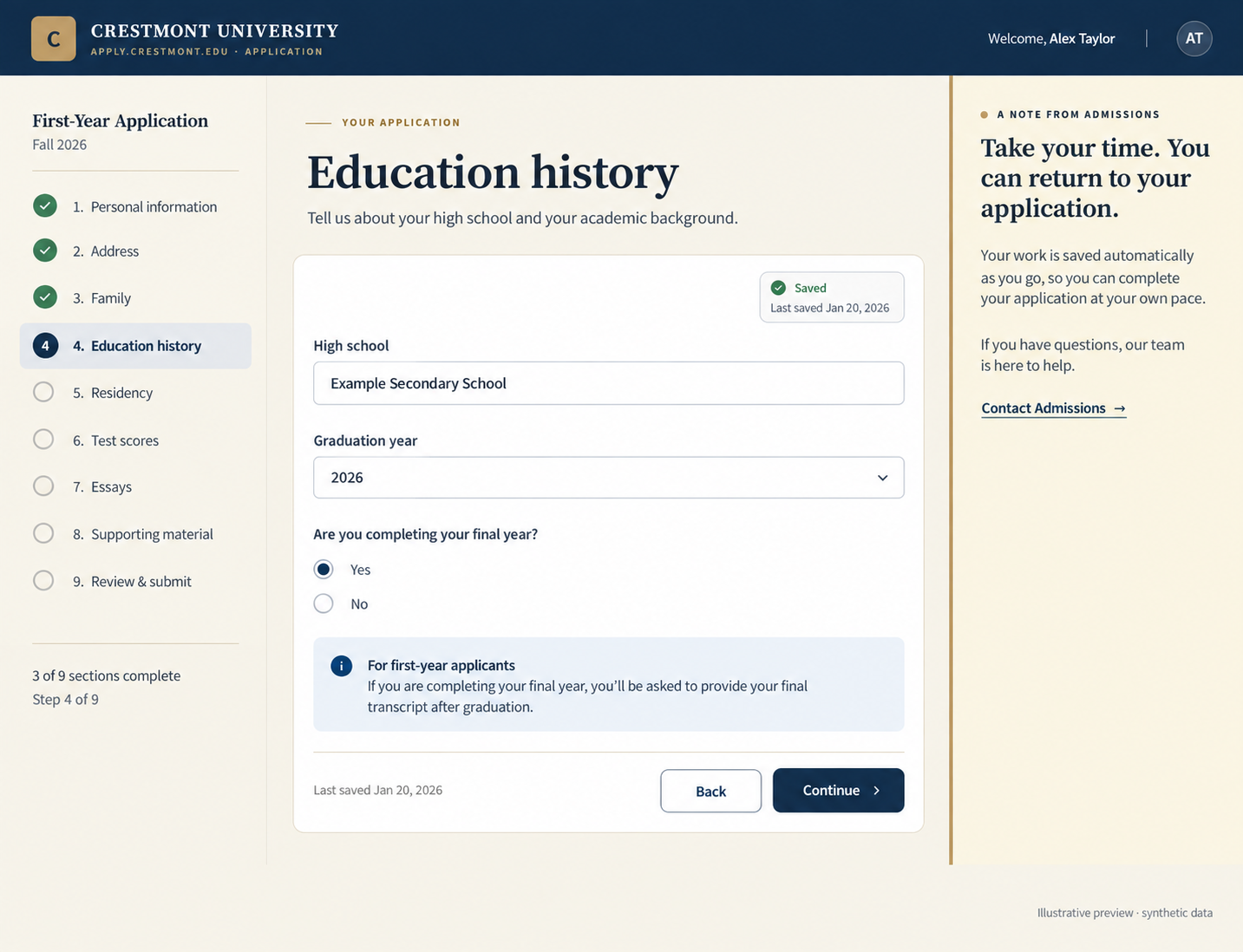
A clear place to make progress.
Help applicants work through the questions and supporting material their application needs. Show their progress, make the next step clear and give them a place to return when they are ready to continue.
See what happens after submission- Application progress
- Relevant questions
- Save and return
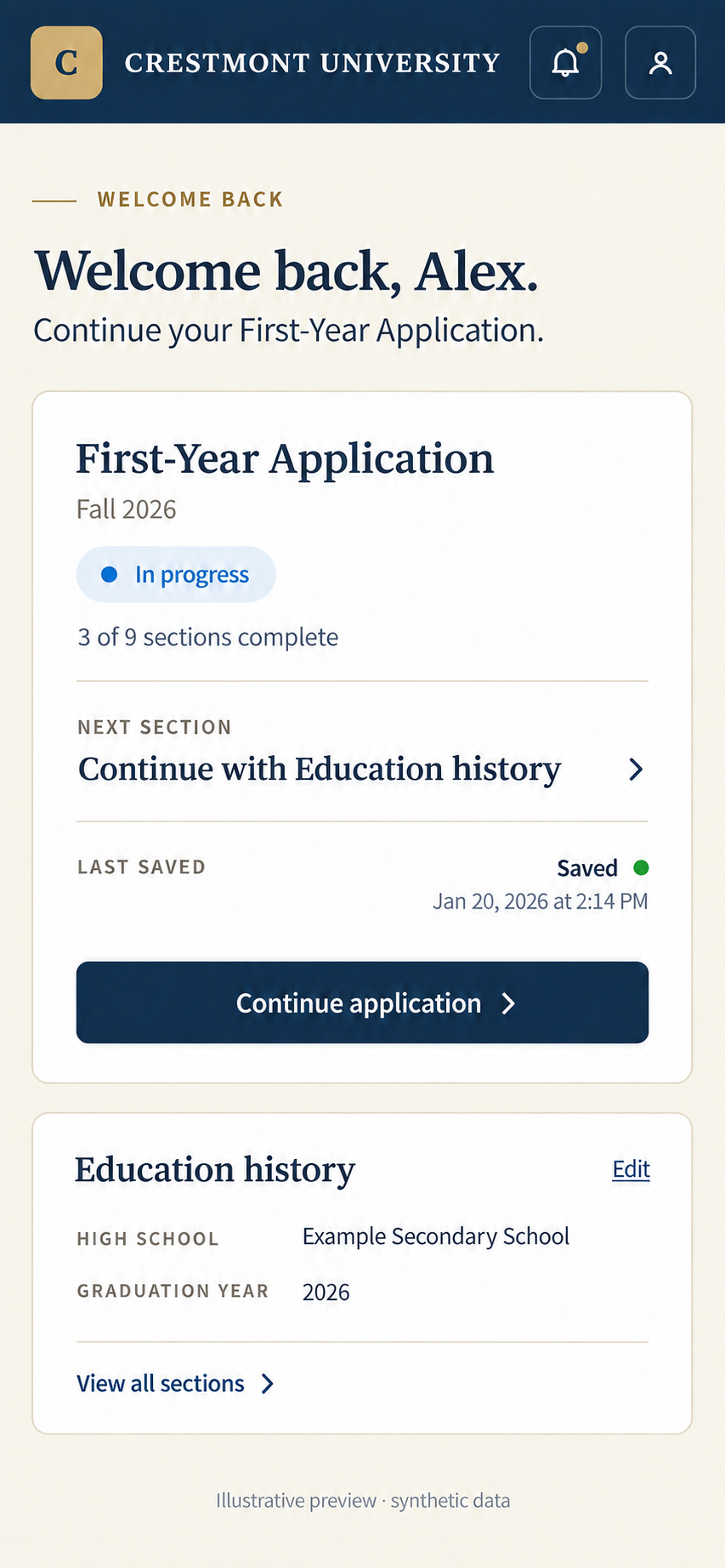
A place to pick things up.
When an applicant returns, their application gives them a clear place to continue.
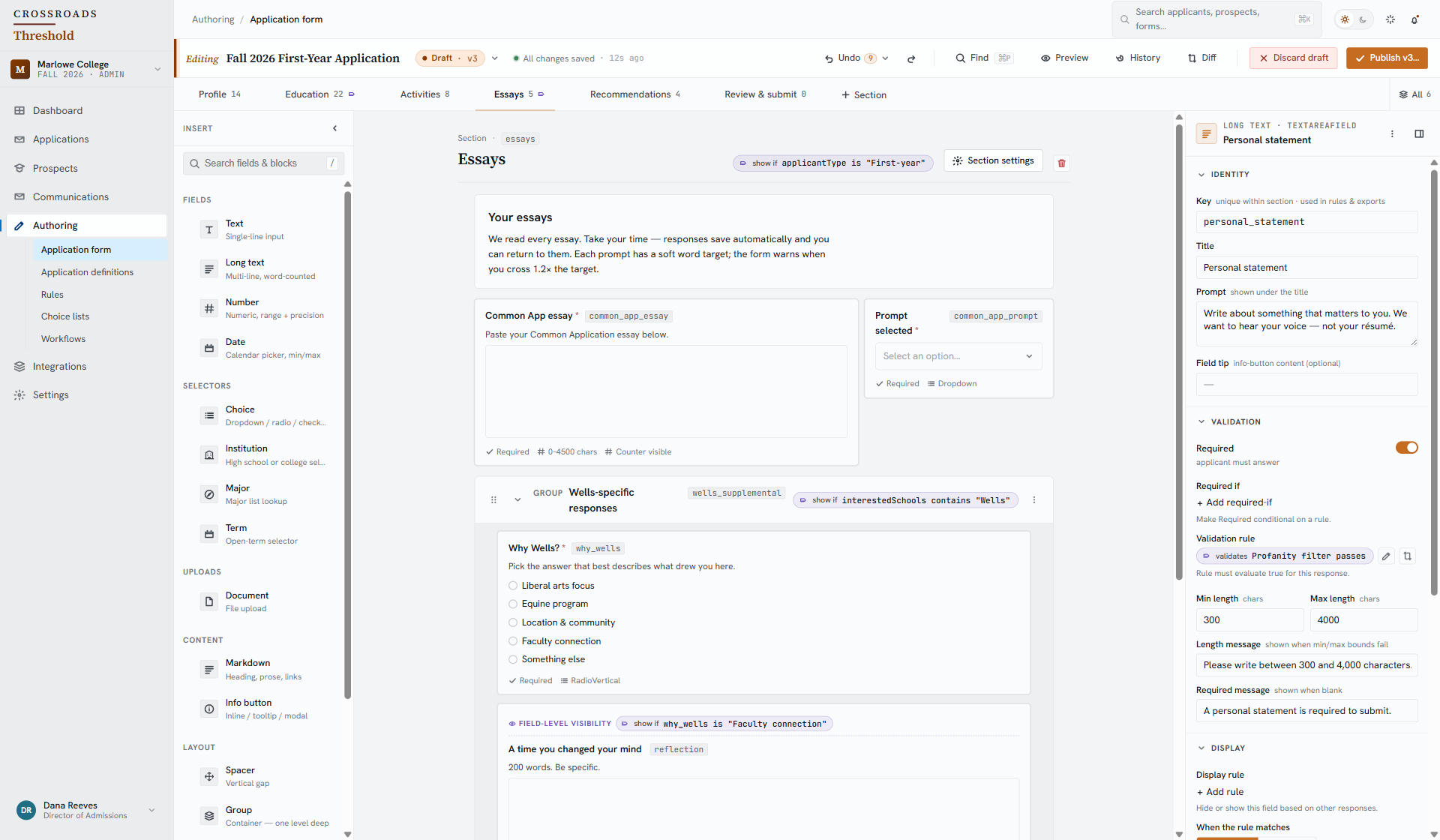
Look inside the application builder
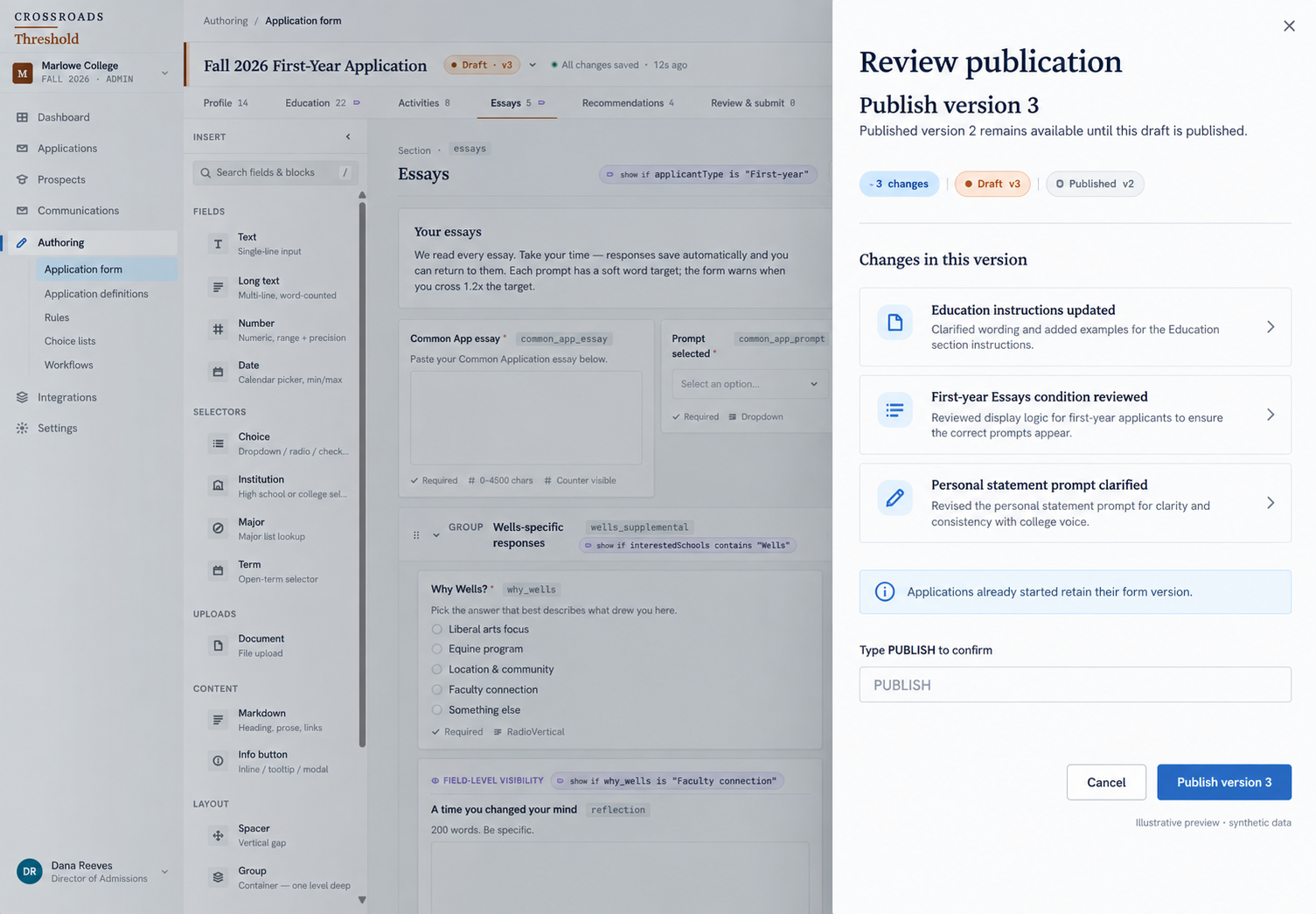
Improve the application with evidence.
Use form-use data to find questions worth a closer look. Repeated validation problems can point your team toward wording, instructions or a condition to investigate.
Make a change in a draft, preview the applicant experience, then return to the signals after publication.
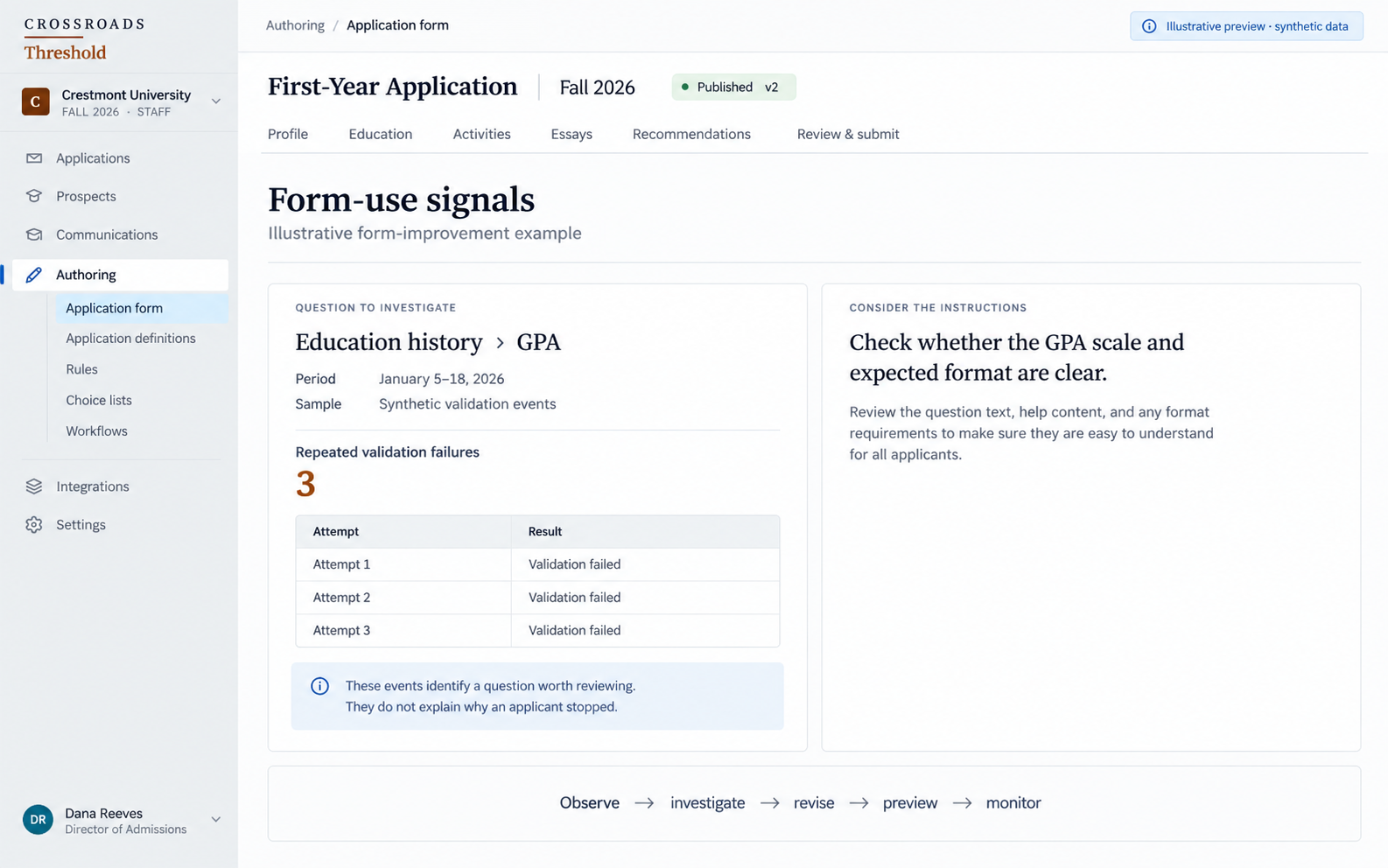
A question keeps producing validation errors. Your team reviews the instructions and tests a clearer draft.
- Notice a pattern
- Review the question
- Revise and preview
- Monitor after publication
A signal gives your team somewhere to investigate. It does not explain the cause on its own.
Discuss your application formsAn applicant file, from one step to the next
See what each file needs next.
Keep requirements, documents and staff work in context. See what has arrived, what still needs review and the team or person responsible. Applicants can follow their next step while your staff check the evidence and move the file forward.
In this illustrative Crestmont University example, an applicant supplies an unofficial transcript and the admissions team checks it against the requirement.
Admissions team
See what is outstanding.
Find the pending requirement and the team responsible for the file.
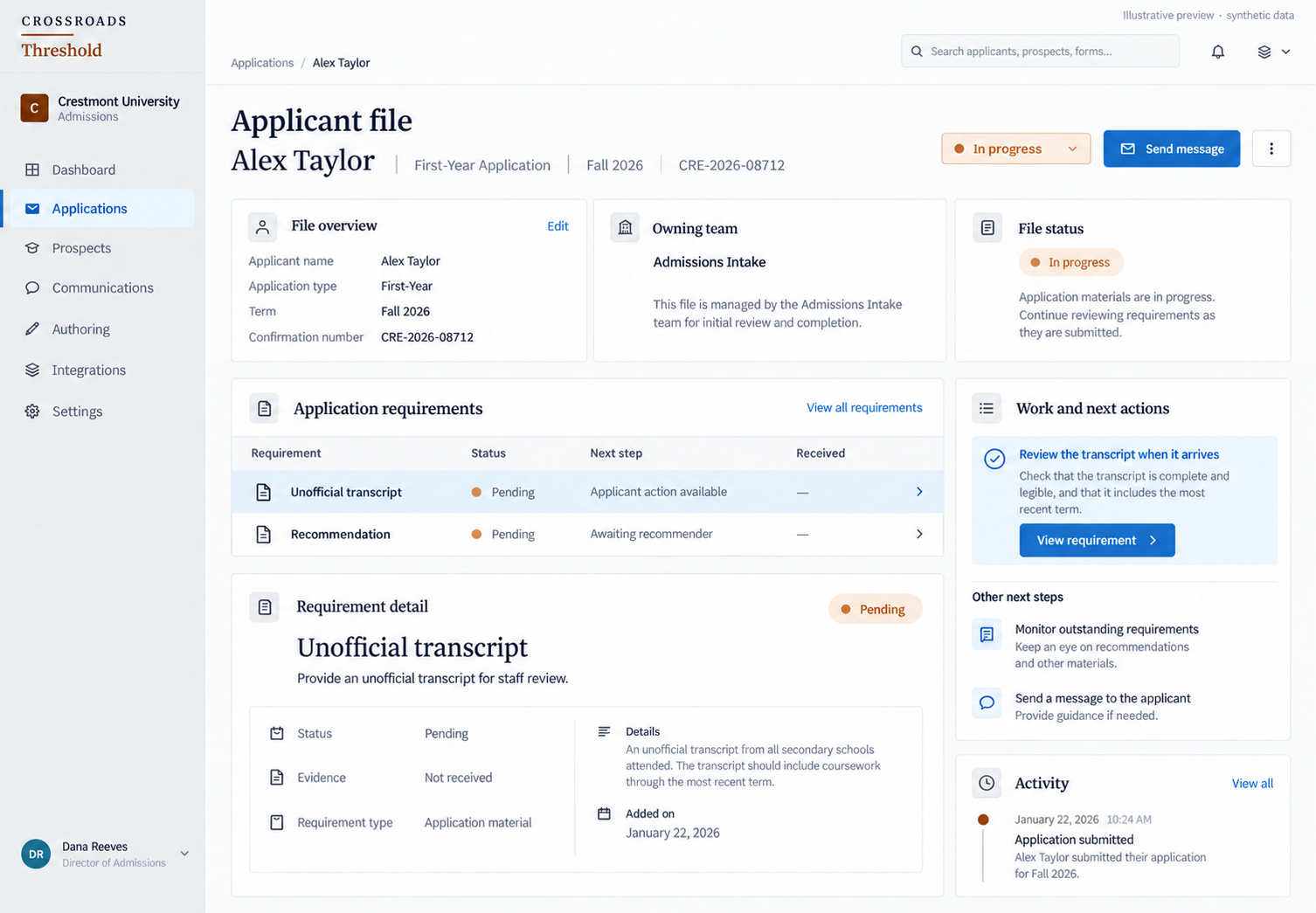
Illustrative previewApplicant file · illustrative institution and dataView full image ↗ Applicant
Know what to provide.
Read the requirement and supply the requested document.
The instruction stays connected to the application, so the applicant knows what this next step is for.
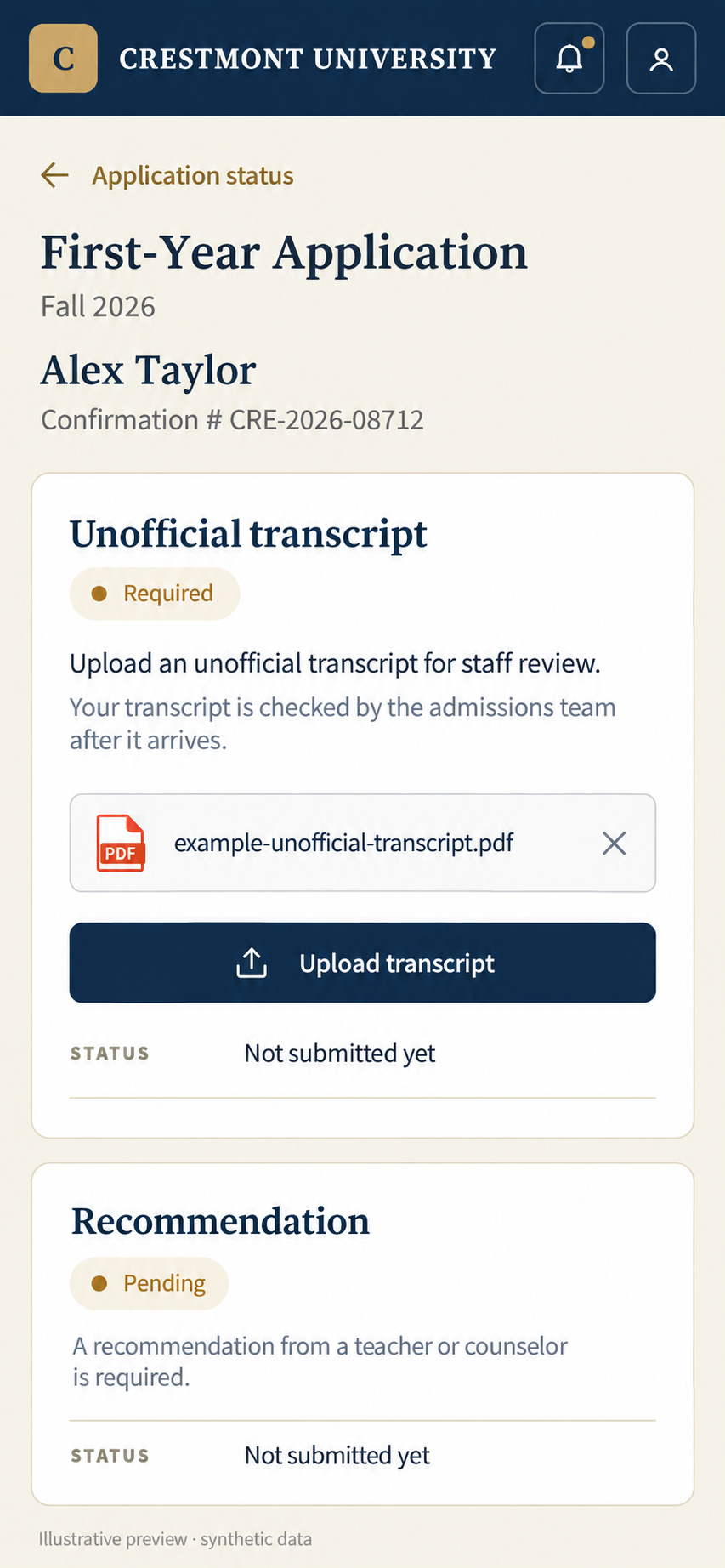
Illustrative previewApplicant's next step · illustrative exampleView full image ↗ Admissions team
Check what arrived.
Review the document before accepting it as evidence for the requirement.
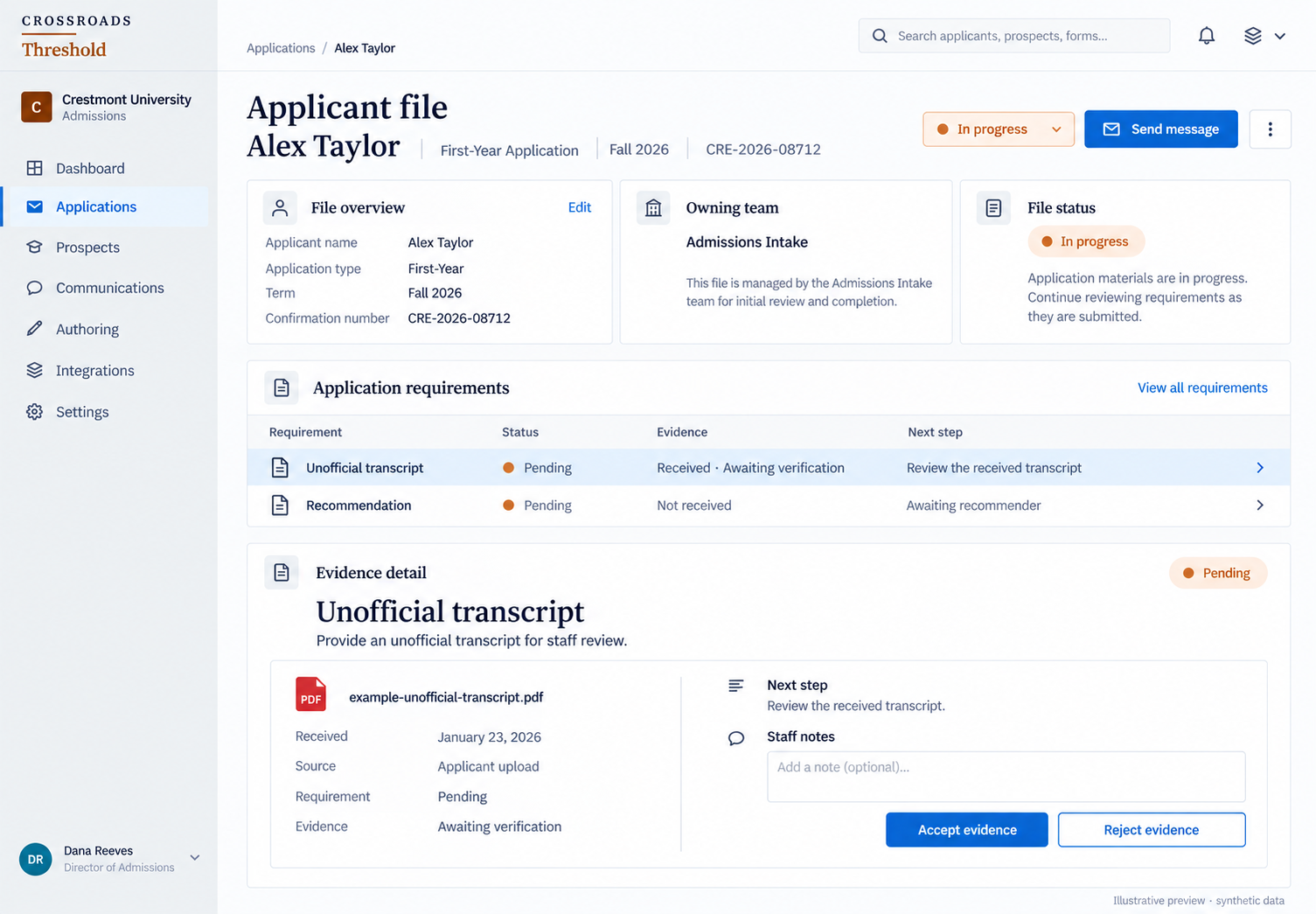
Swipe or scroll across the detail. With a keyboard, focus the image and use ← →.
Illustrative previewDocument received · magnified illustrative detailView full image ↗ Admissions team
See what remains.
See the updated requirement alongside the rest of the file's work.
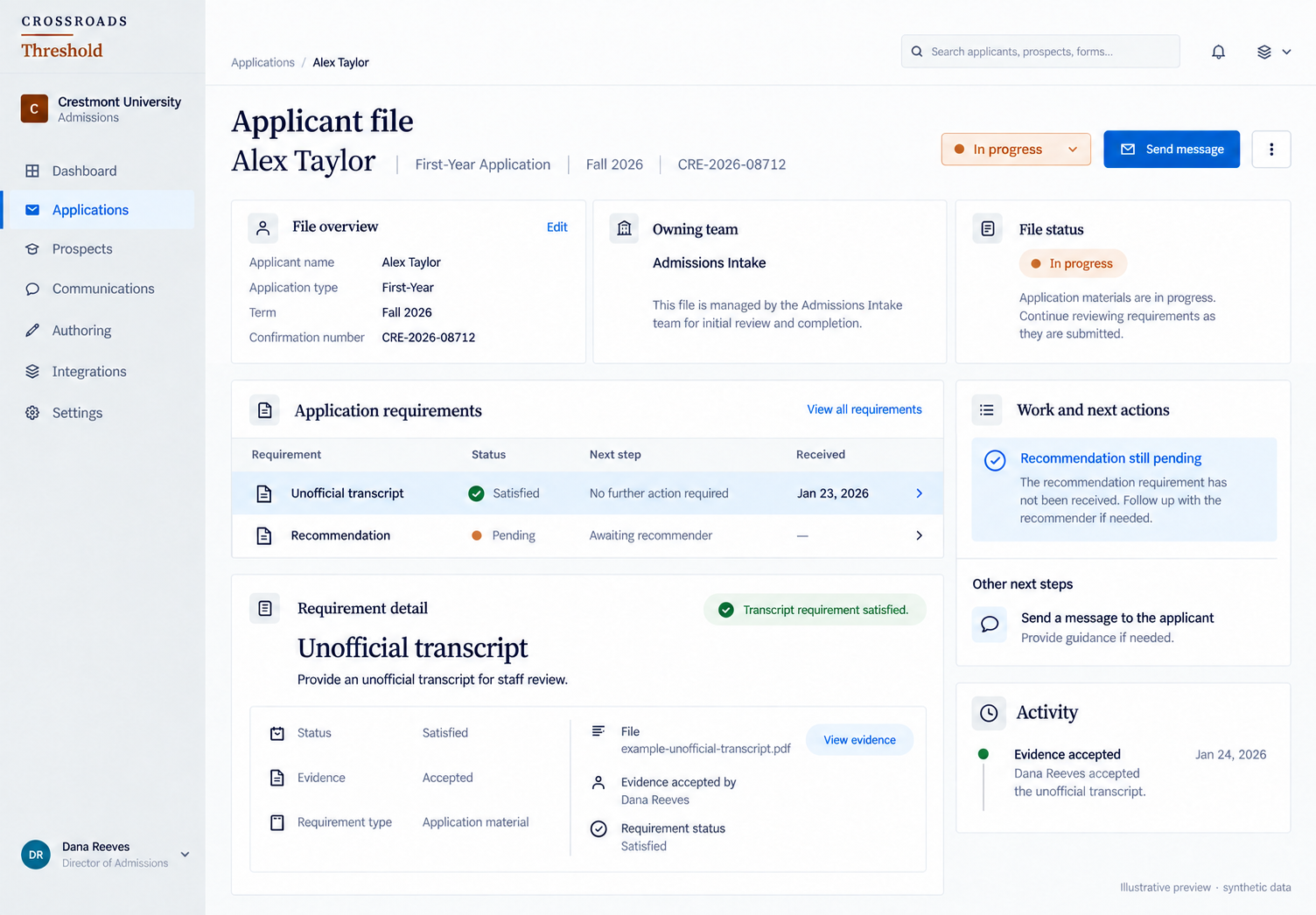
Swipe or scroll across the detail. With a keyboard, focus the image and use ← →.
Illustrative previewRequirement satisfied · magnified illustrative detailView full image ↗
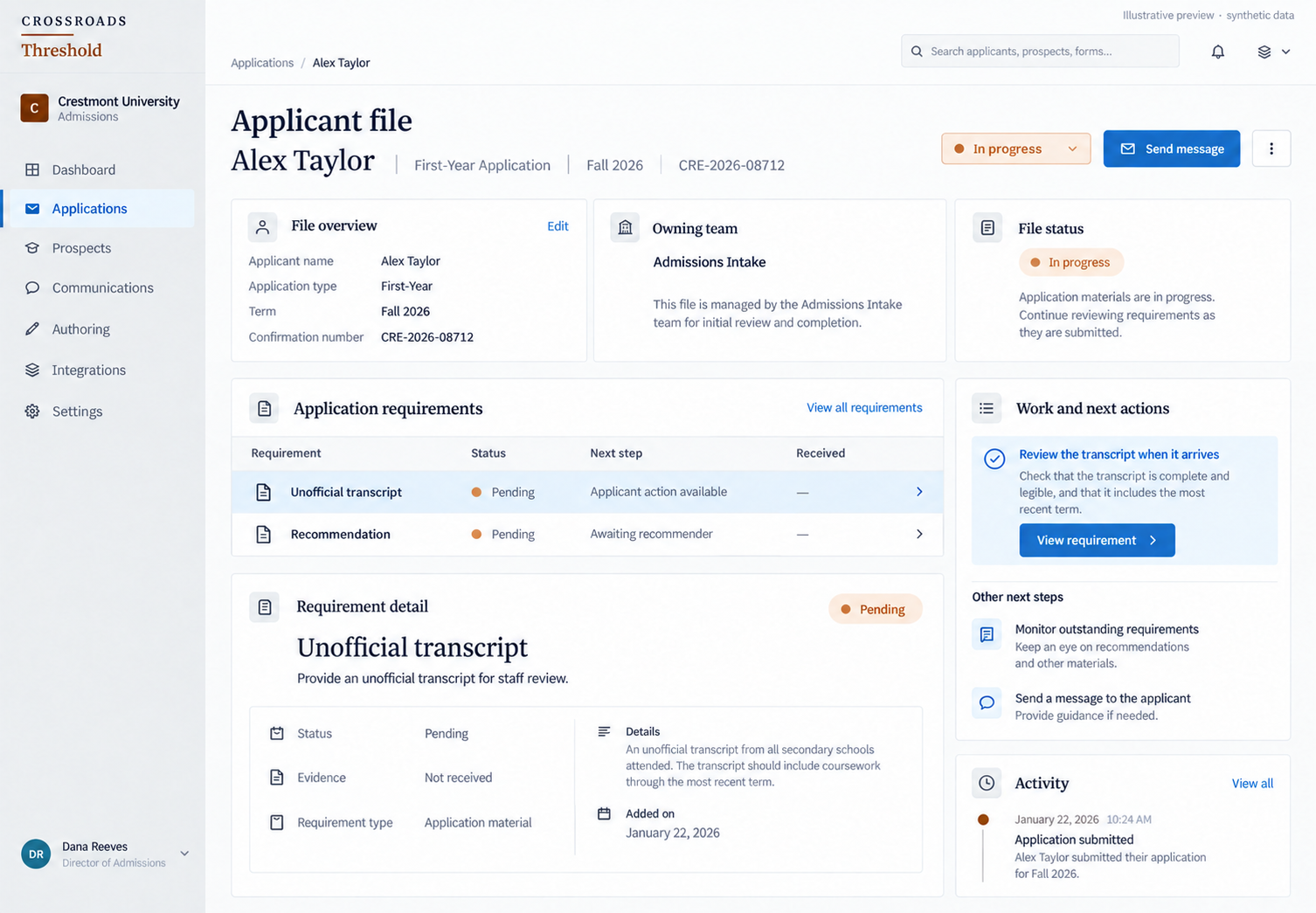
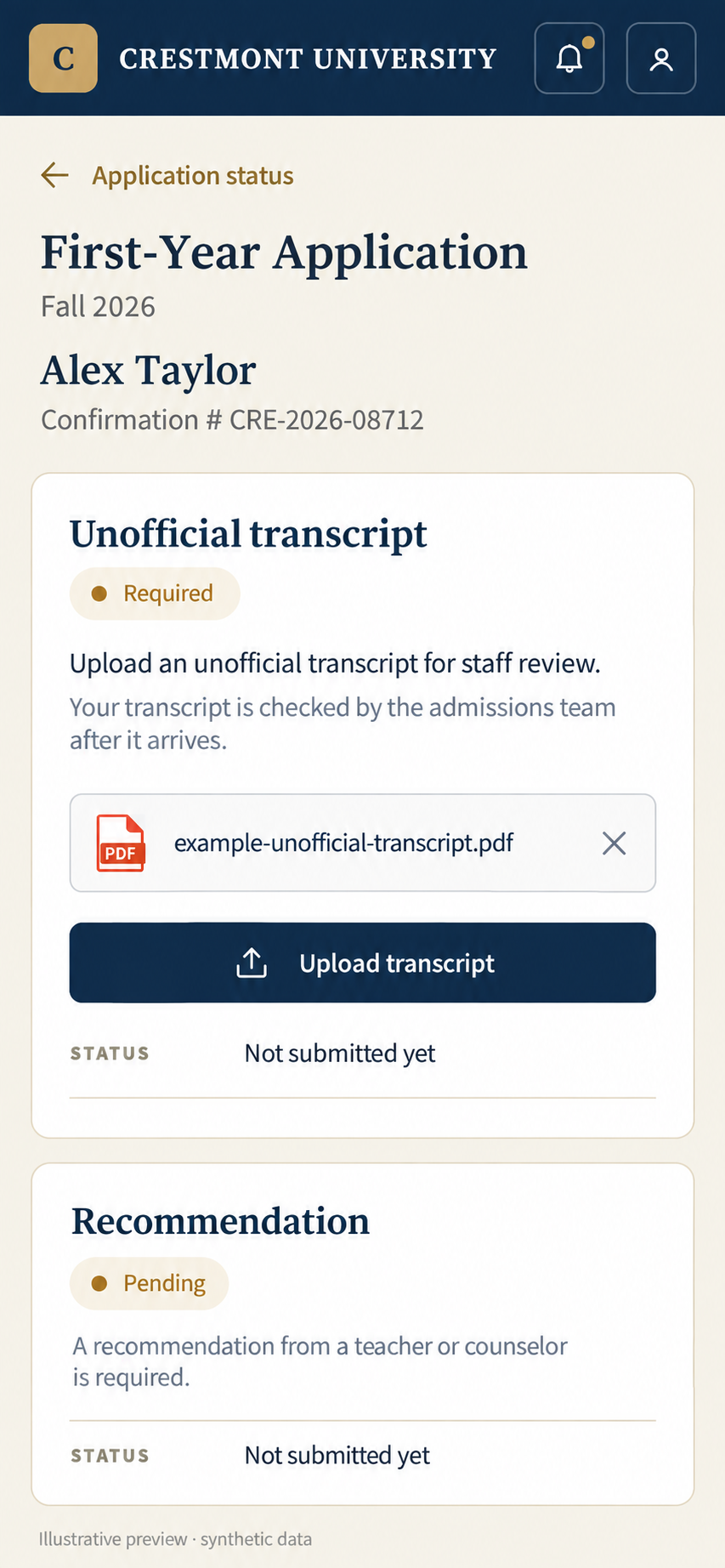
A received document and a satisfied requirement are different steps.
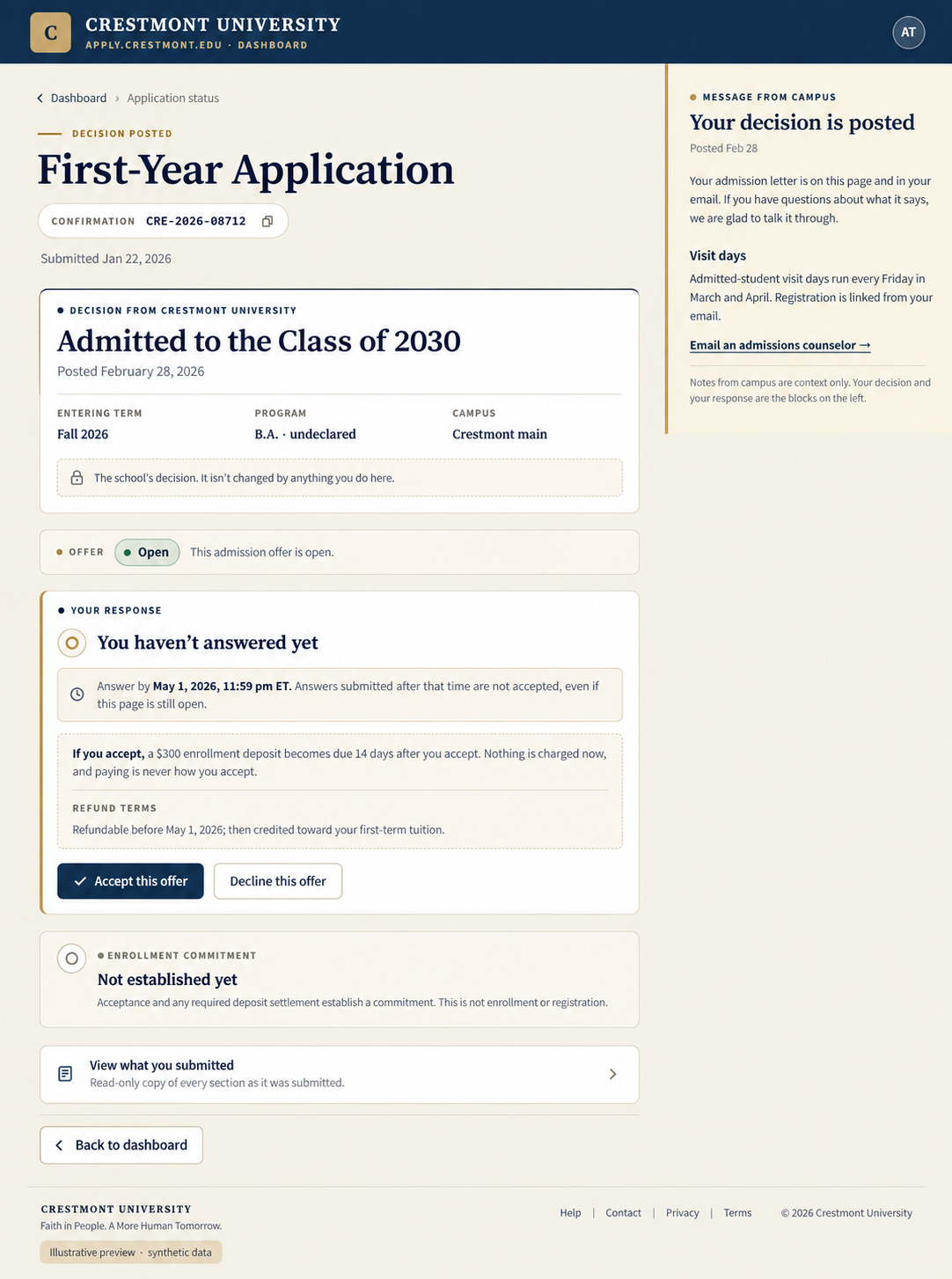
A decision, with a clear next step.
Keep staff review and decision release distinct from the applicant's response. Applicants can read the institution's decision, see the reply deadline and review the offer terms before they answer.
- Institution's decision
- Your team reviews and releases the decision.
- Applicant's response
- The applicant reviews the terms and chooses how to respond.

View an illustrative desktop alternative
Reporting
See where your cycle stands.
Answer the questions your admissions team asks every day: how applications are progressing, what is holding files back and where to focus next. Crossroads brings those answers together with clear definitions and visible update times, so you can explain the numbers you share.
Compare cycles at the same point.
See how this cycle compares with the previous one, on the same calendar date or the same number of days before the deadline. Use the history recorded in Crossroads to put application volume and progress in context.
Follow the number to the work.
Open the files behind an outstanding-requirement count. See what is missing, what has arrived and is waiting for verification, and which team owns the work. Move from a summary to the files that need attention.
Understand where work is waiting.
See work arriving, work completed and how long items have been waiting across your teams. Follow turnaround between key steps and identify work that needs to be picked up or reassigned.
Build and share the list you need.
Create personal or team lists using application facts and your institution's form fields. Choose the columns, export to CSV or Excel, and schedule reports and lists for authorized staff. Permissions govern access and exports, with a record of who exported what and when.
Keep the wider process in view. Follow decisions and offer responses, communications delivery, and fees and deposits. Give finance traceable transaction records and a view of outstanding fees and deposits through separately controlled access.
Use your institution's analytics tools. Bring Crossroads data into institutional reporting through a scheduled feed, with a data dictionary that explains the fields and measures.
See the picture across campuses. Give your system office comparable summary figures across participating campuses while applicant identities stay within each campus.
A shared application for your college system.
For college systems offering a shared application, Crossroads lets applicants enter common information once, choose participating colleges and submit once. Each selected college receives its own application for its admissions process.
A system office can plan the common application with participating colleges while keeping local admissions responsibilities clear. Start by agreeing which questions are shared, who maintains them and who handles the applicant's next step at each college.
Talk through a shared application for your systemOne applicant · shared application
Enter common information once.
Choose Alder Grove College and Harbor Glen College from the participating colleges.
Submit once
One application for
Alder Grove College
Its own admissions process.
One application for
Harbor Glen College
Its own admissions process.
Bring a task your team handles every cycle.
Choose a product demo or a focused conversation about your admissions process, institution’s needs or move to Crossroads.
Workday and Banner integrations are available.
Explore the supported handoffs and responsibilities.
Explore Workday and Banner integrationsPlan the move with your team.
Review migration scope, training and implementation responsibilities.
Implementation & migration